

replacement laptop ac adapter
replacement laptop ac adapter
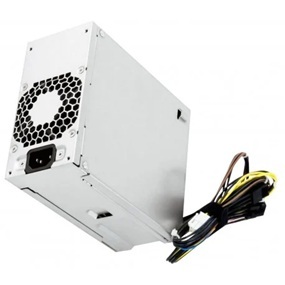

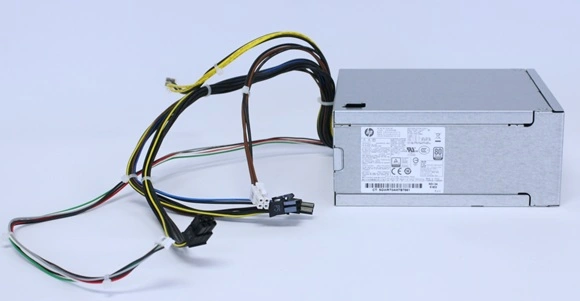
For HP Z2 G4 Workstation PA-4501-1 500W Power Supply L07304-001
Please make sure that you are ordering the correct power supply. All of the compatible models listed below come in different sizes and each size has a different power supply. Please check the part #'s, pictures and specifications carefully to make sure that you are ordering the correct power supply.
New HP Z2 G4 PA-4501-1 500W Workstation Power Supply P/N: PA-4501-1
AC Input :
100-240V 6A 50-60HZ
DC Output :
+12VMAIN 16A
+12VCPU 16A
+12VG1 16A
+12VG2 16A
Interface:6 Pin Auxiliary, 6+6 Pin, 6 Pin PCI Express, 4+4 CPU, 6+2 Pin PCI Express, 4 Pin 12 V
Model:PA-4501-1 L07304-001 L07304-003 901759-003 DPS-500AB-36 A
Compatible Models
HP Z2 G4 SFF Workstation
1.Remove the dead pc power supply Once you've disconnected all the leads, look at the rear of the case and find the three or four screws holding the power supply in place. Remove them, then gently lift out the PS, making sure that the cabling doesn't get tangled on, say, a RAM module or expansion card and accidentally pull it loose.
2. Install the new hp PA-4501-1 Pc power supply Out with the old, in with the new. Make sure the replacement Pc power supply is set to the correct voltage. Once the old PS is out, put the new one in its place and screw it in. Now just reverse the steps you performed: connect the leads to their respective outlets, replace any extracted components, and consult your photos to make sure you've left no lead unplugged. (You'd be surprised how easy it is to forget, say, the DVD lead, especially when you've spent 10 minutes trying to wedge in that pesky front-panel lead.)
3. Fire it up Before you close up the case, make sure everything works. Connect the power cord to the Pc power supply, plug in your monitor and keyboard, and fire up the machine. Unless you've failed to connect the main leads to the motherboard, it should come right to life, just like before. Let it boot completely, then check to make sure there's power to the optical drive(s) and, if applicable, the front panel.
©2012-2025. www.laptopadaptershop.com.au All offers and prices are subject to change without prior notice.Designated trademarks and brands are the property of their respective owners.