

replacement laptop ac adapter
replacement laptop ac adapter
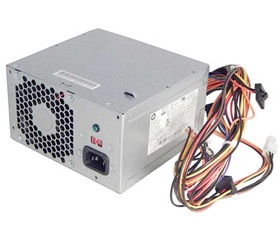
Brand new 742317-001 180W Power Supply For HP Pavilion 500 110 ATX.
For HP Pavilion 500 110 Desktop PSU 180W ATX Power Supply Unit 742317-001 PCD010,New HP 742317-001 180-Watts 24-Pin ATX Power Supply.
MPN: 742317-001 PCD010 751589-001
Form Factor: ATX
Cooling: 1 Fan
Max. Output Power: 180W
Model: 500 110
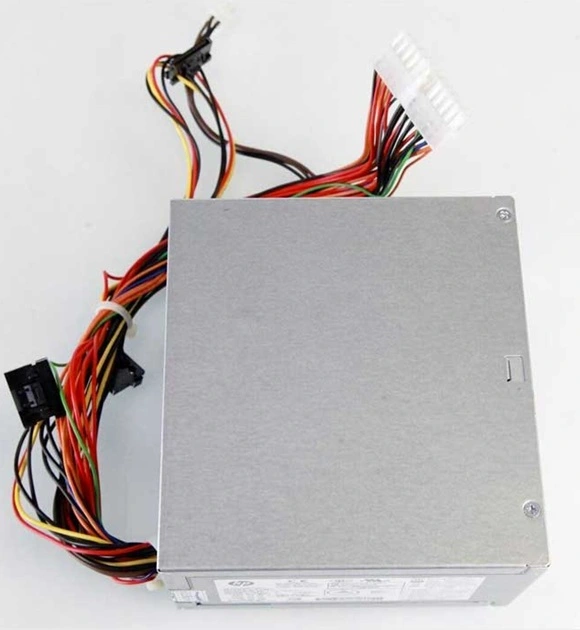
1.Remove the dead pc power supply Once you've disconnected all the leads, look at the rear of the case and find the three or four screws holding the power supply in place. Remove them, then gently lift out the PS, making sure that the cabling doesn't get tangled on, say, a RAM module or expansion card and accidentally pull it loose.
2. Install the new hp 742317-001 Pc power supply Out with the old, in with the new. Make sure the replacement Pc power supply is set to the correct voltage. Once the old PS is out, put the new one in its place and screw it in. Now just reverse the steps you performed: connect the leads to their respective outlets, replace any extracted components, and consult your photos to make sure you've left no lead unplugged. (You'd be surprised how easy it is to forget, say, the DVD lead, especially when you've spent 10 minutes trying to wedge in that pesky front-panel lead.)
3. Fire it up Before you close up the case, make sure everything works. Connect the power cord to the Pc power supply, plug in your monitor and keyboard, and fire up the machine. Unless you've failed to connect the main leads to the motherboard, it should come right to life, just like before. Let it boot completely, then check to make sure there's power to the optical drive(s) and, if applicable, the front panel.
©2012-2025. www.laptopadaptershop.com.au All offers and prices are subject to change without prior notice.Designated trademarks and brands are the property of their respective owners.